
Add New Office
There are two ways to add new office(s) in Central Office Manager. New offices may be created from scratch or the information may be imported from a spreadsheet created for that purpose. This topic will cover creating a new office from scratch. See Import Offices for information on importing new office information from a template.
Creating a New Office
To create a new office from scratch, use the following steps:
The New Office Setup dialog box appears:
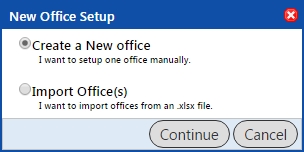
- Select Create New office option, then click Continue.
The Edit Office Info screen appears:
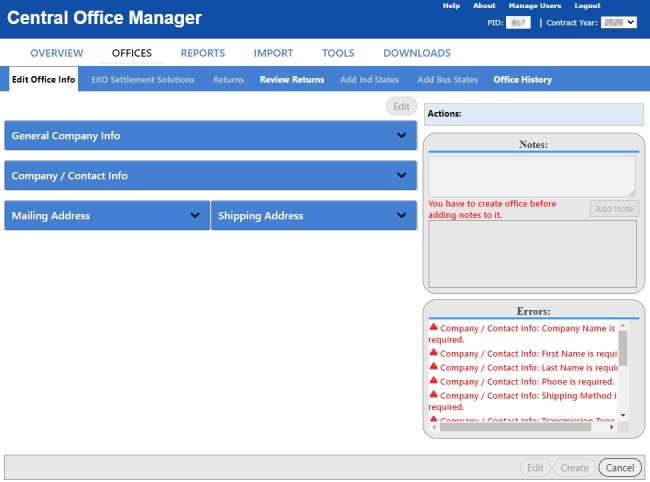
Required fields are marked with a red asterisk (*). Offices cannot be created if required entries are missing.
Click each header to enter information for that section.
- Under General Company Info, determine a color code for your office if desired.
For information on designating color codes and their descriptions, see Office Coding.
- Under Company/Contact Info, Company Name, First Name, Last Name, Phone, Transmission Type, and Shipping Method are required entries. Enter additional information as desired.
To narrow the default Transmission Type options and only show those specific to your software package, click  ; then, clear the check box to Deselect All Products. Select the check box for your software package under Available Products and only the Transmission Types specific to your selection will be shown under Available Transmission Types.
- Under Mailing Address and Shipping Address, enter the appropriate information. If the mailing address and shipping address are the same, select the Use Mailing Address check box to automatically populate Shipping Address fields with Mailing Address information.
- Do one of the following:
- Click Create (at the bottom of the Edit Office Info tab).
- Click the Save & Finish Later button if you want to save the office you are currently working on and come back to it for later revision.
- Click Cancel to go back to the Offices page.
When you have finished adding information to your office, you must click the Create button in order for your office to appear in any of your office lists.
After an office has been created, that office will appear as Pending and you will not be able to edit the office info until the process has finished and the office is reset to a complete or incomplete status.
See Also: