
Activate Shipping for Sub Offices
If you are a Main Office (Office 0) user, you can set up Central Office Manager to ship to all active Sub Offices. All active Sub Offices are included in this list, provided that the Sub Office's Shipping Method is set to either Direct to User or Group Shipment.
To ship to all active Sub Offices:
- Click the Offices tab.
- Use Search and Filter Offices to locate the desired office or locate the office manually.
The Edit Office Info page appears. Note the Actions pane in the upper right corner of the page:
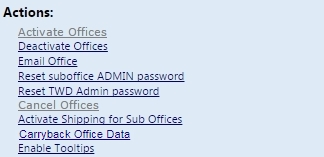
- In the Actions pane, click the Activate Shipping for Sub Offices link.
A Warning message appears.
- Click Yes.
A Confirmation message appears.
- Click OK.
Even if a Sub Office's OK to Ship field is marked No, the Sub Office will still be included on the shipping list provided that the Sub Office's Shipping Method is set to either Direct to User or Group Shipment.
If the Sub Office shipping method is Group Shipment, a Group # must be selected.